Budowa własnego laba (środowiska laboratoryjnego) to jeden z fundamentów rozwoju każdego administratora IT, inżyniera bezpieczeństwa czy studenta kierunków technicznych. Podobnie jak chemik testuje różne substancje, zanim wprowadzi produkt na rynek, tak środowisko labowe daje możliwość bezpiecznego eksperymentowania. Pozwala ono na testowanie konfiguracji, symulowanie ataków, naukę pracy z zasadami grup (GPO) oraz rozwijanie umiejętności w PowerShellu – bez ryzyka wpływu na środowisko produkcyjne.
W tym artykule przeprowadzę Cię krok po kroku przez proces budowy izolowanego środowiska laboratoryjnego, które będzie składało się z:
- Hosta: Twój komputer z Windows 10/11 Pro/Enterprise.
- Kontrolera Domeny (DC): Serwer z Windows Server.
- Klienta (CLIENT): Stacja robocza z Windows 10/11.
Cały proces zostanie zautomatyzowany przy użyciu PowerShella, dzięki czemu nie tylko przyśpieszysz swoją pracę , ale również nauczysz się czegoś nowego.
- Faza I: Planowanie
- Faza II: Przygotowanie Hosta (Instalacja Hyper-V)
- Faza III: Konfiguracja Sieci Wirtualnej
- Faza IV: Tworzenie maszyn wirtualnych
- Faza V: Konfiguracja sieci wewnątrz VM
- Faza VI: Zmiana nazwy serwera i stacji roboczej
- Faza VII: Promocja Kontrolera Domeny (AD DS)
- Faza VIII: Migawki (Checkpoints)
- Faza IX: Weryfikacja i rozwiązywanie problemów
- Podsumowanie i dalsze kroki
- Czy jest inna droga?
Faza I: Planowanie
Zanim przejdziemy do budowy naszego laba warto zawsze poświęcić chwilę na przemyślenie architektury i konkretnych rozwiązań. Dobre planowanie zaoszczędzi Ci godzin debugowania problemów z siecią oraz zasobami, a także umożliwi łatwą i przyjemną prace z gotowym środowiskiem.
Główne założenia
Potrzebujemy dwóch maszyn wirtualnych i hosta, na którym te maszyny powstaną:
- Kontroler domeny (DC) potrzebuje ok. 4 GB,
- Stacja robocza (CLIENT) również ok 4 GB,
- Host (twój komputer) będzie potrzebował resztę do sprawnego działania.
Architektura
HOST (HYPER-V)
   ├── kontroler domeny (DC)
   └── stacja robocza (CLIENT)
Wymagania wstępne
Zanim zaczniesz, upewnij się, że spełniasz następujące warunki:
- System Operacyjny Hosta: Windows 10/11 w wersji Pro, Enterprise lub Education (wersja Home nie posiada Hyper-V).
- Wirtualizacja: Włączona w BIOS/UEFI (Intel VT-x lub AMD-V).
- RAM: Minimum 16 GB.
- Dysk: Minimum 50-60 GB wolnego miejsca na maszyny wirtualne.
- Obrazy ISO (do pobrania ze stron Microsoft):
- Windows Server Evaluation (dostępny na stronie Microsoft).
- Windows 10/11 Evaluation lub posiadana licencja.
- Uprawnienia: Musisz być zalogowany jako Administrator na hoście.
Faza II: Przygotowanie Hosta (Instalacja Hyper-V)
Pierwszym krokiem do budowy laba będzie przygotowanie fundamentów pod przyszłe maszyny wirtualne, czyli włączenie roli Hyper-V. I jako, że tematem przewodnim mojego bloga jest PowerShell to zamiast kikać w Ustawieniach systemu skorzystamy z odpowiedniego cmdletu.
Krok 2.1: Włączenie Hyper-V
Otwórz PowerShell jako Administrator (Prawy Przycisk Myszki -> Uruchom jako Administrator).
# Sprawdzenie czy wirtualizacja jest włączona w BIOS
PS C:\Windows> Get-ComputerInfo | Select-Object HyperVisorPresent, HyperVRequirementVirtualizationFirmwareEnabled

HyperVisorPresent HyperVRequirementVirtualizationFirmwareEnabled
----------------- ----------------------------------------------
             True

# Instalacja roli Hyper-V
PS C:\Windows> Enable-WindowsOptionalFeature -Online -FeatureName Microsoft-Hyper-V -All

Path          :
Online        : True
RestartNeeded : False

# Uwaga: Po wykonaniu tej komendy konieczny jest restart komputera.

PS C:\Windows> Restart-Computer -Force
⚠️ Ważne: Po restarcie zaloguj się ponownie i otwórz PowerShell jako Administrator, aby kontynuować.
Faza III: Konfiguracja Sieci Wirtualnej
Aby środowisko laboratoryjne było bezpieczne i odizolowane, nie należy podłączać go bezpośrednio do sieci domowej. Optymalnym rozwiązaniem jest utworzenie Przełącznika Wewnętrznego (Internal Switch) z odpowiednio skonfigurowanym NAT (Network Address Translation). Pozwoli to maszynom wirtualnym na komunikację z hostem oraz dostęp do Internetu, przy jednoczesnej pełnej izolacji od pozostałych urządzeń w sieci lokalnej.
Krok 3.1: Konfiguracja sieci (Host)
Poniżej zamieszczam polecenia, które możesz wykorzystać do utworzenia wirtualnego przełącznika oraz konfiguracji NAT pod naszego laba.
# Utworzenie nowego wirtualnego przełącznika sieciowego
PS C:\Windows> New-VMSwitch -Name "LabNet" -SwitchType Internal

Name   SwitchType NetAdapterInterfaceDescription
----   ---------- ------------------------------
LabNet Internal

# Nadanie nowego IP
PS C:\Windows> New-NetIPAddress -InterfaceAlias "vEthernet (LabNet)" -AddressFamily IPv4 -IPAddress "192.168.100.1" -PrefixLength 24

IPAddress         : 192.168.100.1
InterfaceIndex    : 67
InterfaceAlias    : vEthernet (LabNet)
AddressFamily     : IPv4
Type              : Unicast
PrefixLength      : 24
PrefixOrigin      : Manual
SuffixOrigin      : Manual
AddressState      : Tentative
ValidLifetime     : Infinite ([TimeSpan]::MaxValue)
PreferredLifetime : Infinite ([TimeSpan]::MaxValue)
SkipAsSource      : False
PolicyStore       : ActiveStore

# Konfiguracja NAT (Network Address Translation) aby VM miały Internet
PS C:\Windows> New-NetNat -Name LabNat -InternalIPInterfaceAddressPrefix "192.168.100.0/24"

Name                             : LabNat
ExternalIPInterfaceAddressPrefix :
InternalIPInterfaceAddressPrefix : 192.168.100.0/24
IcmpQueryTimeout                 : 30
TcpEstablishedConnectionTimeout  : 1800
TcpTransientConnectionTimeout    : 120
TcpFilteringBehavior             : AddressDependentFiltering
UdpFilteringBehavior             : AddressDependentFiltering
UdpIdleSessionTimeout            : 120
UdpInboundRefresh                : False
Store                            : Local
Active                           : True
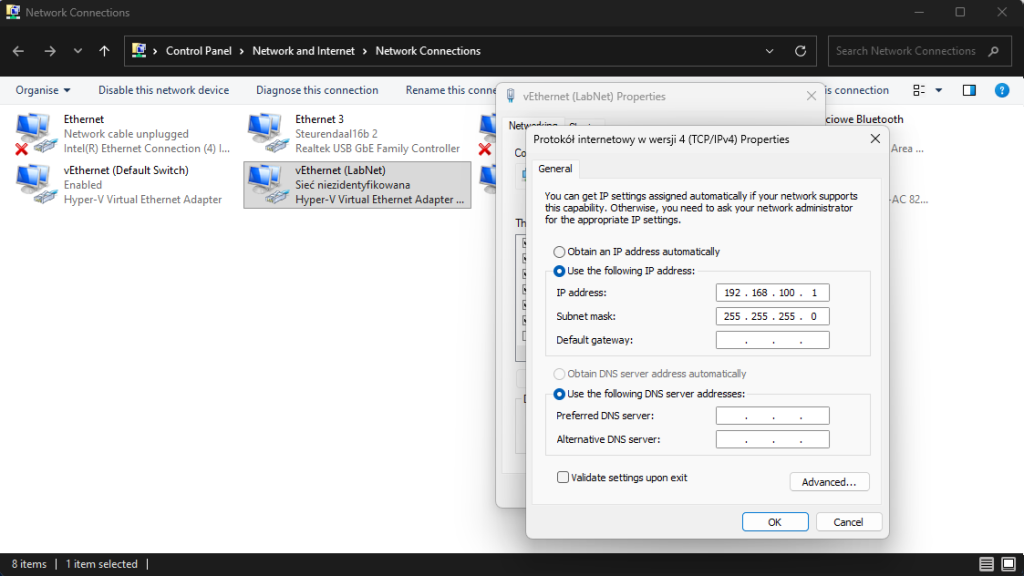
Jeżeli wszystko przebiegło pomyślnie to w Twoich połączeniach sieciowych powinno pojawić się coś podobnego:
💡Warto wiedzieć
W Hyper-V do wyboru masz trzy rodzaje przełączników:
1. Przełącznik Zewnętrzny (External Switch) – łączy maszynę wirtualną bezpośrednio z Twoją fizyczną kartą sieciową (przewodową lub Wi-Fi). Przydaje się, gdy chcesz, aby maszyna była pełnoprawnym członkiem Twojej sieci domowej i pobierała adres IP bezpośrednio z Twojego routera.
2. Przełącznik Wewnętrzny (Internal Switch) – tworzy sieć dostępną tylko dla maszyn wirtualnych oraz systemu operacyjnego hosta. Brak bezpośredniego wyjścia na świat (Internet) oraz brak widoczności dla innych urządzeń w domu. Idealny do laboratoriów, gdzie host musi zarządzać maszynami (np. przez RDP), ale nie chcemy ich wystawiać na zewnątrz.
3. Przełącznik Prywatny (Private Switch) – najbardziej izolowany typ. Izoluje maszyny nawet od samego systemu operacyjnego hosta. Testowanie złośliwego oprogramowania (malware) lub symulowanie zamkniętych segmentów sieci, do których nawet administrator hosta nie ma bezpośredniego wglądu przez sieć. Host nie widzi maszyn, maszyny nie widzą hosta ani Internetu.
Rodzaj Dostęp do Internetu Widoczność dla Hostu Widoczność w LAN Zewnętrzny ✅ Tak ✅ Tak ✅ Tak Wewnętrzny ❌ Nie* ✅ Tak ❌ Nie Prywatny ❌ Nie ❌ Nie ❌ Nie *W przypadku przełącznika Wewnętrznego można uzyskać dostęp do Internetu, konfigurując mechanizm NAT, o którym wspominałem wcześniej.
Faza IV: Tworzenie maszyn wirtualnych
Sieć przygotowana, teraz czas na kolejny krok – utworzymy dwie maszyny wirtualne: DC (Kontroler Domeny) i CLIENT (Klient). Zakładam, że masz już pobrane obrazy systemów. Jeżeli nie to poniżej zamieszczam strony:
- Windows Server -> https://www.microsoft.com/en-us/evalcenter/download-windows-server-2025
- Windows 11 -> https://www.microsoft.com/pl-pl/software-download/windows11
Krok 4.1: Tworzymy funkcję, która przyda się do tworzenia VMs
Tworzenie maszyny wirtualnej to nie budowa Gwiazdy Śmierci, niemniej jednak kilka poleceń wykonać trzeba, aby nie marnować czasu możemy napisać prostą funkcję, która wykona za nas całą robotę. Poniżej przykładowy kod:
# Konfiguracja ścieżek i zasobów
$VMPath = "C:\Hyper-V-Lab\VMs"
$ISOPathServer = "C:\Obrazy\WinSrv_2025.iso"         # <--- ZMIEN NA SWOJĄ ŚCIEŻKĘ
$ISOPathClient = "C:\Obrazy\Win11_25H2.iso"          # <--- ZMIEN NA SWOJĄ ŚCIEŻKĘ
$SwitchName = "LabNet"

# Sprawdzenie czy katalog dla laba istnieje, jeżeli nie to do tworzymy
if (!(Test-Path $VMPath)) {
    New-Item -Path $VMPath -ItemType Directory -Force
}

# Funkcja pomocnicza do tworzenia VM
function New-LabVM {
    param(
        [string]$VMName,           # Nazwa VM
        [int]$MemoryStartup,       # Pamięć RAM [MB]
        [string]$ISOPath,          # Ścieżka do pliku ISO z systemem
        [int]$VHDSizeGB            # Dysk [GB]
    )

    Write-Host "Tworzenie VM: $VMName..." -ForegroundColor Cyan

    # 1. Tworzenie dysku VHDx / Sprawdzamy czy katalog z nazwą VM istnieje, jeżeli nie to go tworzymy
    $VHDPath = "$VMPath\$VMName\$VMName.vhdx"
    if (!(Test-Path "$VMPath\$VMName")) { New-Item -Path "$VMPath\$VMName" -ItemType Directory -Force }

    New-VHD -Path $VHDPath -SizeBytes ($VHDSizeGB * 1GB) -Dynamic       # Tworzy nowy dysk dynamiczny

    # 2. Tworzenie maszyny wirtualnej (Generacja 2 dla UEFI)
    New-VM -Name $VMName `
           -MemoryStartupBytes ($MemoryStartup * 1MB) `
           -SwitchName $SwitchName `
           -Generation 2 `
           -VHDPath $VHDPath `
           -Path "$VMPath\$VMName"

    # 3. Podpięcie ISO (Instalator)
    Add-VMDvdDrive -VMName $VMName -Path $ISOPath

    # 4. Konfiguracja procesora (Wirtualizacja zagnieżdżona - przydatna do dalszych testów)
    Set-VMProcessor -VMName $VMName -ExposeVirtualizationExtensions $true

    # 5. Integracja (Guest Services) - pozwala na kopiowanie plików do VM
    Enable-VMIntegrationService -VMName $VMName -Name "Guest Service Interface"

    # 6. Konfiguracja liczby rdzeni procesora (Win 11 wymaga 2)
    Set-VMProcessor -VMName $VMName -Count 2

    # 7. konfiguracja Trusted Platfom
    # Tworzenie lokalnego key protectora
    $kp = New-HgsKeyProtector -Owner (Get-HgsGuardian) -AllowUntrustedRoot

    # Przypisanie key protectora do VM
    Set-VMKeyProtector -VMName $VMName -KeyProtector $kp.RawData

    # Włączenie vTPM
    Enable-VMTPM -VMName $VMName

    Write-Host "VM $VMName utworzona pomyślnie." -ForegroundColor Green
}
💡Warto wiedzieć
Poniżej krótkie zestawienie dysków, które możesz spotkać w Hyper-V:
1. Dyski VHD vs VHDX (Formaty plików)
- VHD: Starszy format (do 2 TB). Bardziej podatny na uszkodzenia przy nagłym braku zasilania.
- VHDX: Nowszy, zalecany format (do 64 TB). Odporny na błędy dzięki systemowi logowania operacji i zoptymalizowany pod kątem nowoczesnych dysków SSD.
2. Rodzaje alokacji miejsca – wybierając dysk, decydujesz, jak zajmuje on miejsce na Twoim fizycznym dysku:
- Dynamicznie rozszerzany (Dynamically Expanding):
- Działanie: Na początku zajmuje niewielką ilość miejsca i rośnie wraz z instalacją systemu i plików wewnątrz VM.
- Zaleta: Oszczędność miejsca na Twoim komputerze.
- Wada: Nieco mniejsza wydajność przy intensywnym zapisie i ryzyko zapchania fizycznego dysku, jeśli masz wiele takich maszyn.
- Idealny do naszego domowego laboratorium.
- Stały rozmiar (Fixed Size):
- Działanie: Rezerwuje całą zadeklarowaną przestrzeń (np. tworzysz dysk 60 GB i tyle samo znika z Twojego dysku).
- Zaleta: Najwyższa wydajność (brak fragmentacji wirtualnego pliku).
- Wada: Marnotrawstwo miejsca, jeśli maszyna wykorzystuje tylko ułamek pojemności.
- Różnicowy (Differencing):
- Działanie: Działa w relacji „Rodzic-Dziecko”. Przechowuje tylko zmiany wprowadzone względem dysku macierzystego.
- Zaleta: Pozwala błyskawicznie stworzyć np. 5 maszyn z Windows Server, korzystając z jednego bazowego obrazu systemu.
- Wada: Jeśli uszkodzisz lub usuniesz plik „rodzica”, wszystkie maszyny „dzieci” przestaną działać.
Typ dysku Wydajność Zużycie miejsca Bezpieczeństwo Dynamiczny Średnia Niskie (na start) Dobre Stały Wysoka Wysokie Bardzo dobre Różnicowy Średnia Minimalne Ryzykowne
Krok 4.2: Wywołujemy funkcję i tworzymy DC
Skoro mamy gotową funkcję to nie zostaje nam nic innego jak wywołać ją i kolejno utworzyć nasze wirtualne maszyny. Na pierwszy ogień idzie DC:
PS C:\WINDOWS\system32> New-LabVM -VMName "DC" -MemoryStartup 4096 -ISOPath $ISOPathServer -VHDSizeGB 60
Tworzenie VM: DC...


    Directory: C:\Hyper-V-Lab\VMs


Mode                 LastWriteTime         Length Name
----                 -------------         ------ ----
d-----        21/03/2026     15:55                DC

ComputerName            : DELL
Path                    : C:\Hyper-V-Lab\VMs\DC01\DC01.vhdx
VhdFormat               : VHDX
VhdType                 : Dynamic
FileSize                : 4194304
Size                    : 64424509440
MinimumSize             :
LogicalSectorSize       : 512
PhysicalSectorSize      : 4096
BlockSize               : 33554432
ParentPath              :
DiskIdentifier          : D72155E7-5F89-46EB-8D96-81F8EE50279E
FragmentationPercentage : 0
Alignment               : 1
Attached                : False
DiskNumber              :
IsPMEMCompatible        : False
AddressAbstractionType  : None
Number                  :


Name             : DC
State            : Off
CpuUsage         : 0
MemoryAssigned   : 0
MemoryDemand     : 0
MemoryStatus     :
Uptime           : 00:00:00
Status           : Operating normally
ReplicationState : Disabled
Generation       : 2

VM DC utworzona pomyślnie.
Krok 4.3: Wywołujemy funkcję i tworzymy maszynę CLIENT
Teraz czas na stację roboczą. Wykonujemy tutaj identyczne wywołanie z tym, że zmieniamy nazwę maszyny oraz ścieżkę do pliku ISO.
PS C:\WINDOWS\system32> New-LabVM -VMName "CLIENT" -MemoryStartup 4096 -ISOPath $ISOPathClient -VHDSizeGB 60
Tworzenie VM: CLIENT...


    Directory: C:\Hyper-V-Lab\VMs


Mode                 LastWriteTime         Length Name
----                 -------------         ------ ----
d-----        21/03/2026     15:57                CLIENT

ComputerName            : DELL
Path                    : C:\Hyper-V-Lab\VMs\CLIENT01\CLIENT01.vhdx
VhdFormat               : VHDX
VhdType                 : Dynamic
FileSize                : 4194304
Size                    : 64424509440
MinimumSize             :
LogicalSectorSize       : 512
PhysicalSectorSize      : 4096
BlockSize               : 33554432
ParentPath              :
DiskIdentifier          : 363DC99C-3B95-431D-BEA7-0E3F8818EE9E
FragmentationPercentage : 0
Alignment               : 1
Attached                : False
DiskNumber              :
IsPMEMCompatible        : False
AddressAbstractionType  : None
Number                  :


Name             : CLIENT
State            : Off
CpuUsage         : 0
MemoryAssigned   : 0
MemoryDemand     : 0
MemoryStatus     :
Uptime           : 00:00:00
Status           : Operating normally
ReplicationState : Disabled
Generation       : 2

VM CLIENT utworzona pomyślnie.
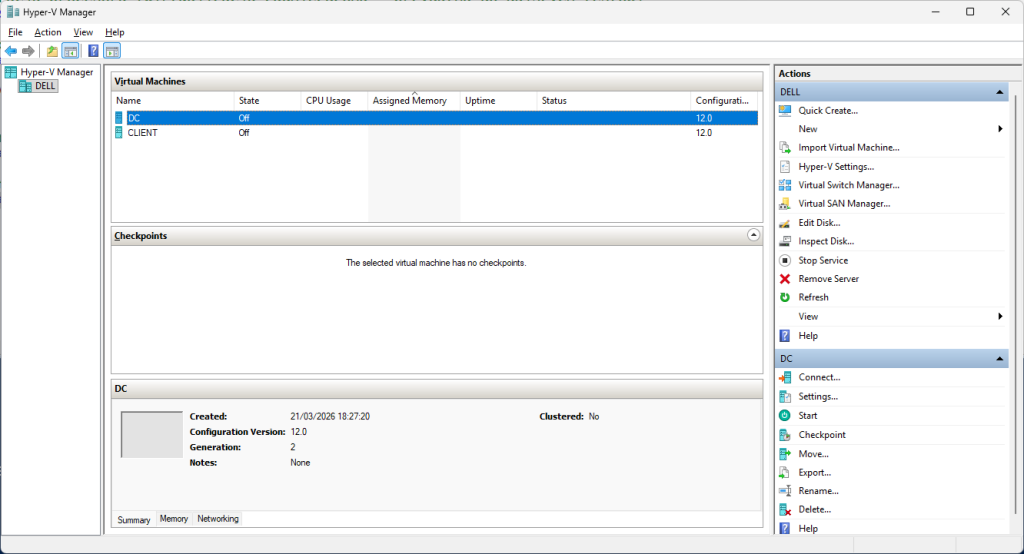
Po prawidłowym, dwukrotnym wywołaniu funkcji w uruchom menager Hyper-V. Wykorzystaj skrót WIN+R i wpisz virtmgmt.msc lub wyszukaj przy pomocy paska wyszukiwania wpisz Hyper-V i uruchom. Twoim oczom powinien ukazać się widok zbliżony do tego poniżej.
Krok 4.4: Instalacja systemu DC
Ok, to jest moment kiedy nasze maszyny są już zbudowane, czas zatem zainstalować system.
Uruchom DC w Hyper-V, w tym celu prawy przycisk myszy i Connect, a następnie Start.
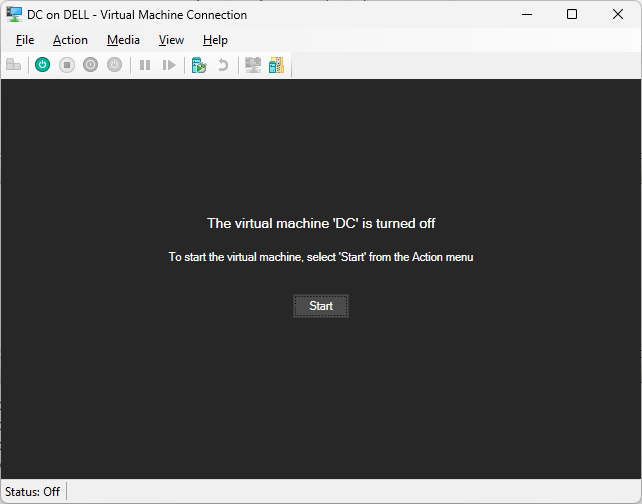
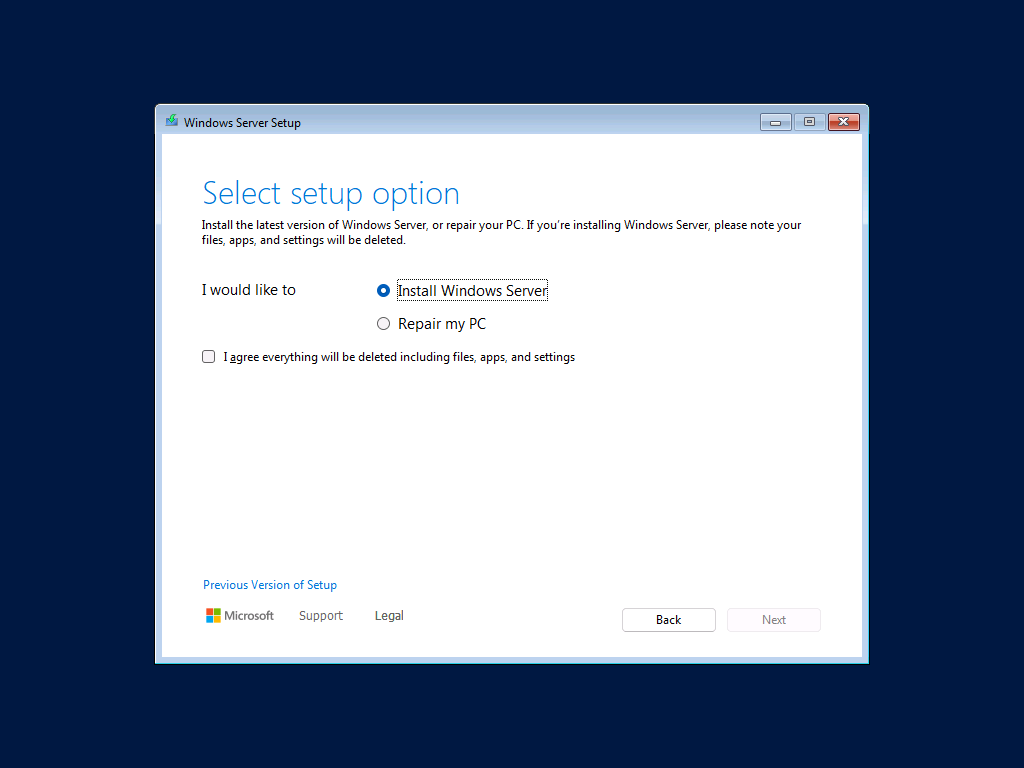
Po chwili powinna rozpocząć się standardowa instalacja systemu. Wybierz język i styl klawiatury. Przejdź dalej, wybierz Install Windows Server, zaznacz checkboxa i wybierz Next.
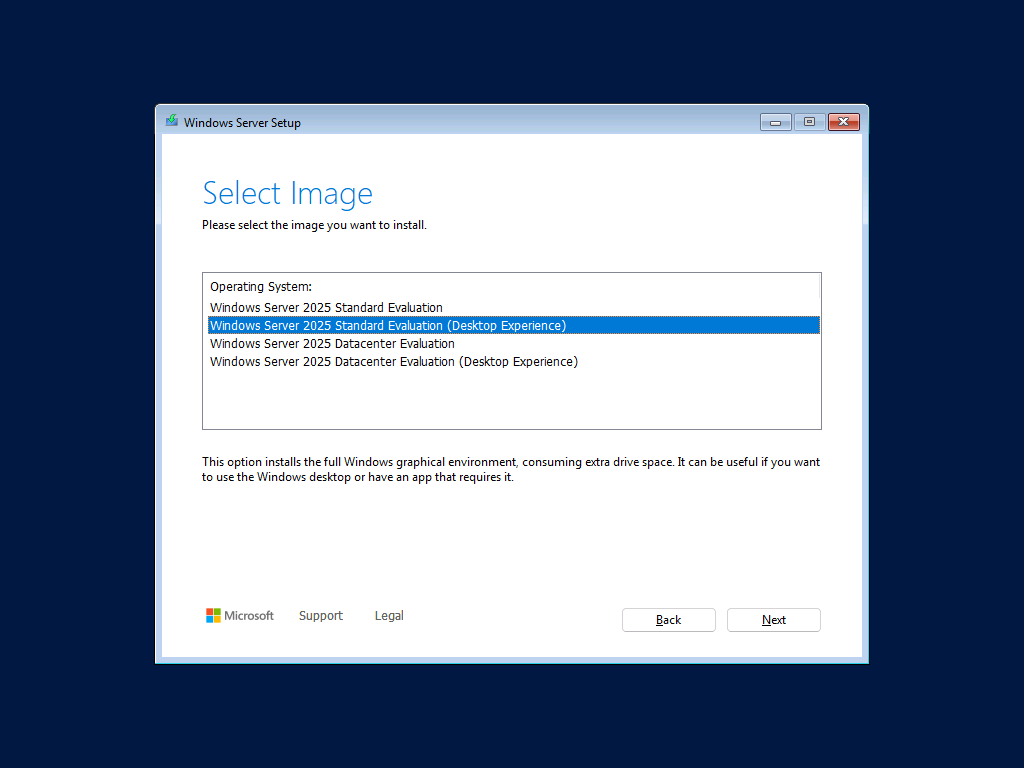
Następnie wybierz Windows Server Standard (Desktop Experience), aby zainstalować wersję ze środowiskiem graficznym i ponownie Next.
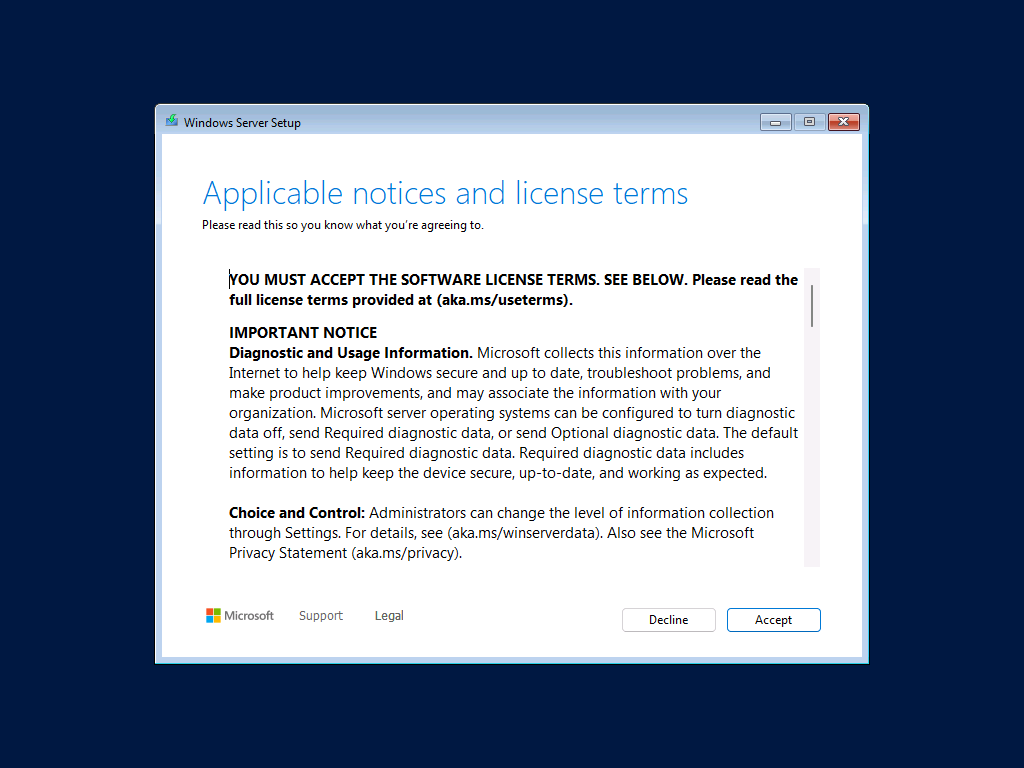
Nastepnie zapoznaj się z zapisami licencji i jeżeli uznasz, że wszystko jest OK to kliknij Accept.
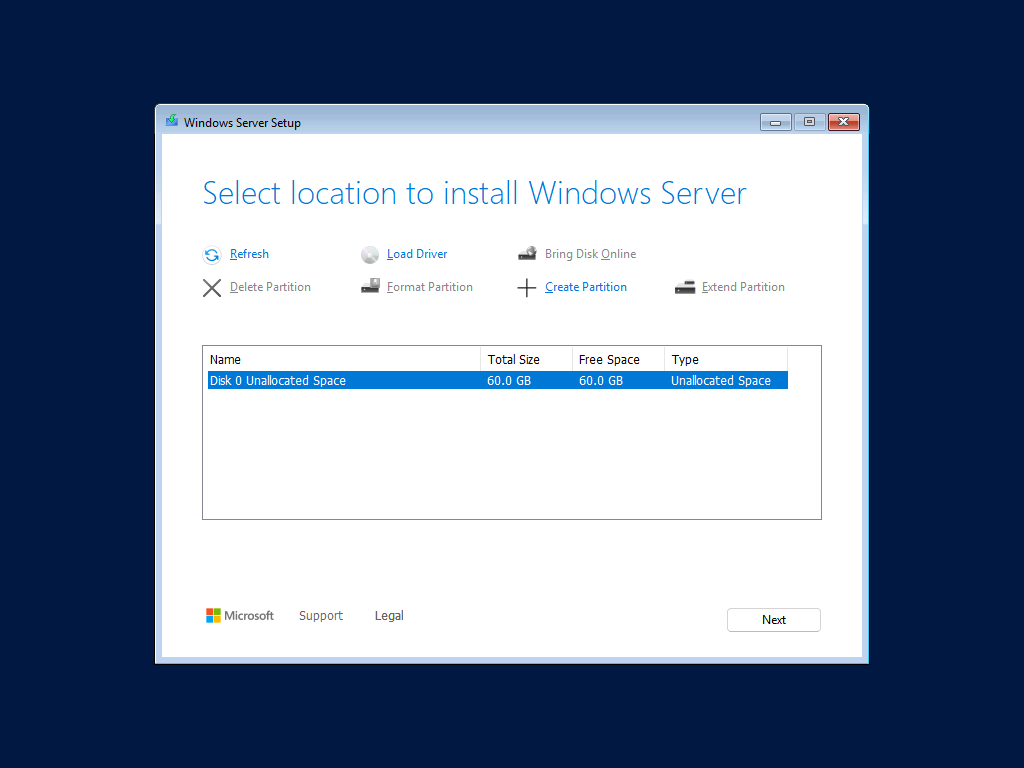
Kolejny krok to wybór lokalizacji do instalacji systemu. Standardowo wygląda to tak, że system operacyjny powinien znajdować się na osobnym dysku i być oddzielony od pozostałych danych. Jednakże ze względu na moje ograniczone miejsce i tylko na potrzeby laba instaluję wszystko na dysku C.
Wszystko gotowe, kolejny krok to już zatwierdzenie instalacji…
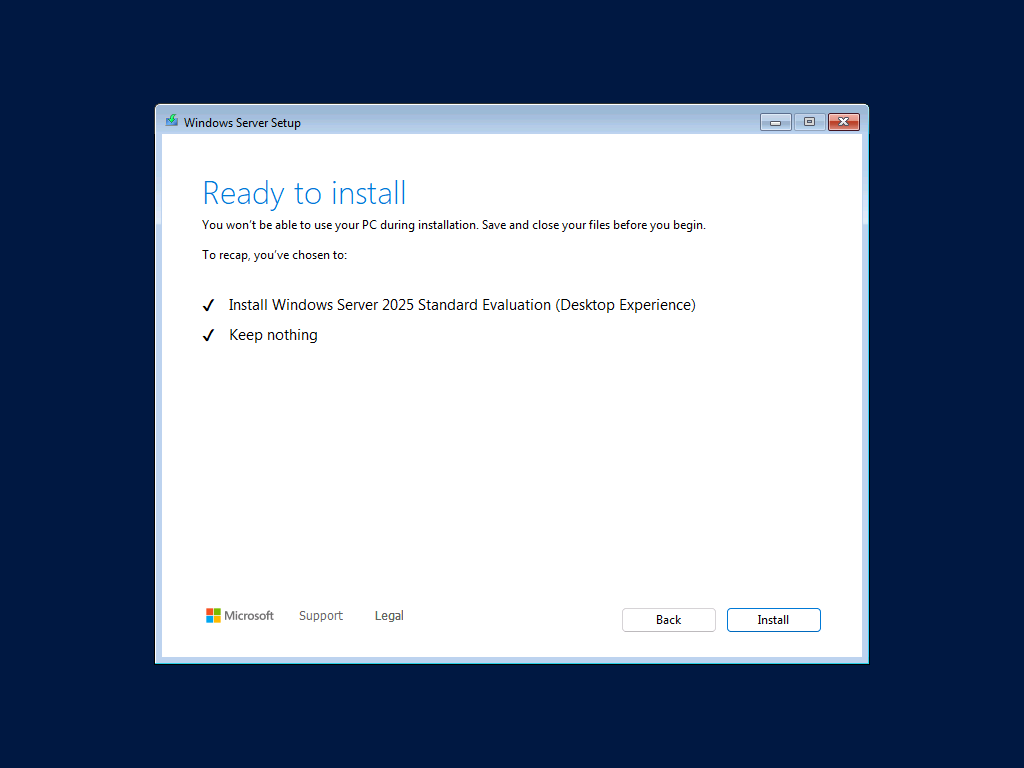
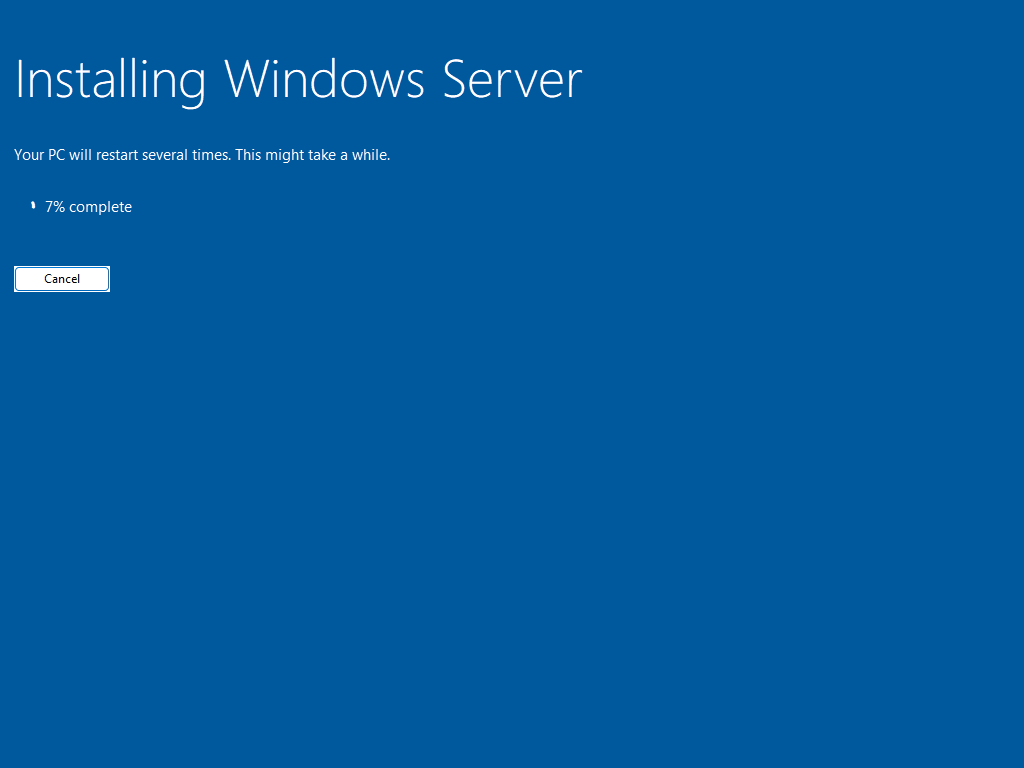
… oraz sama instalacja.
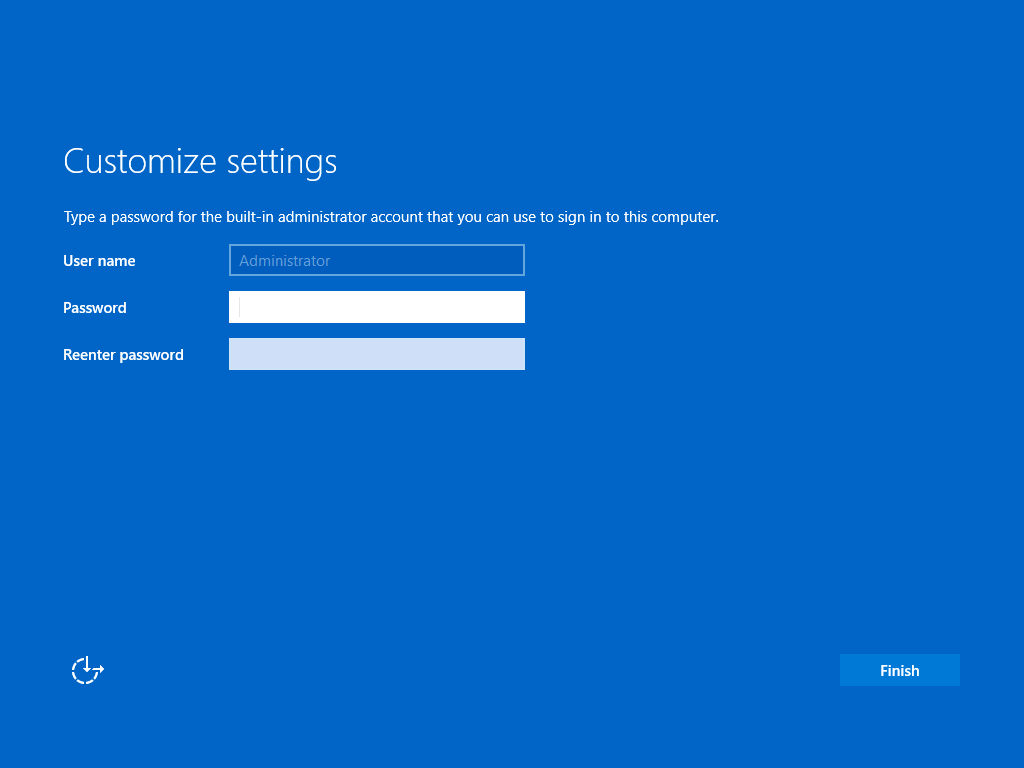
Jeżeli wszystko przebiegło pomyślnie zostaniesz zapytany o hasło dla konta Administrator. Ustaw hasło i staraj się zapmiętać – przyda się później.
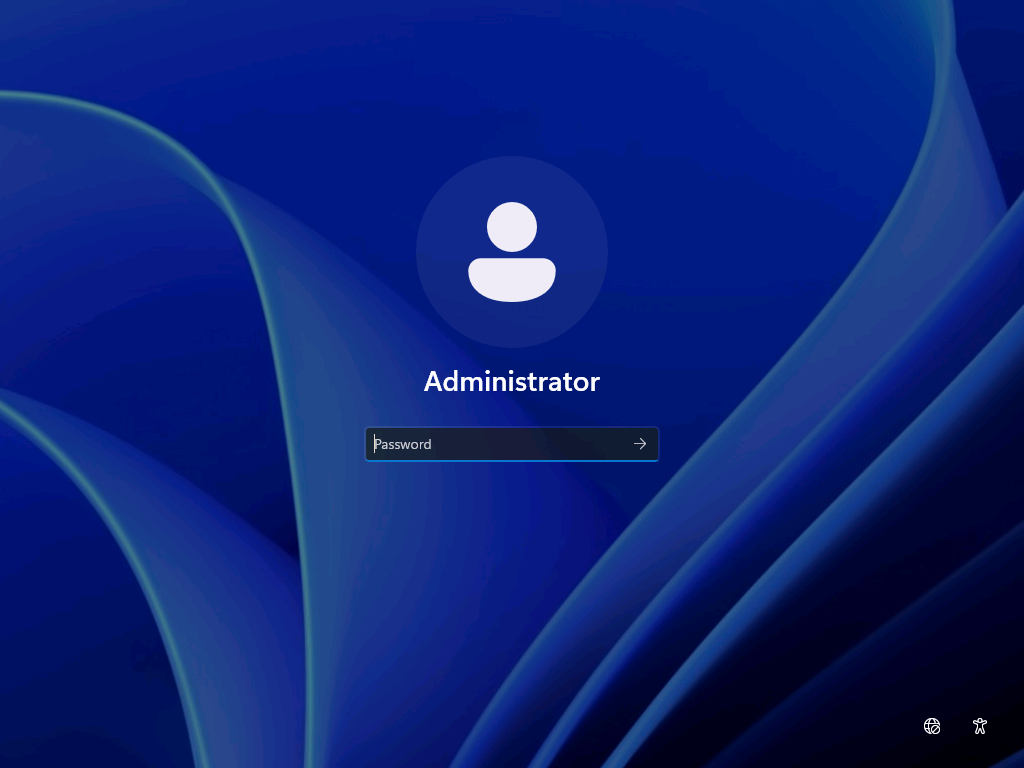
Po instalacji zaloguj się.
Potem jeszcze tylko kilka ustawień i gotowe mamy to – Windows Server zainstalowany.
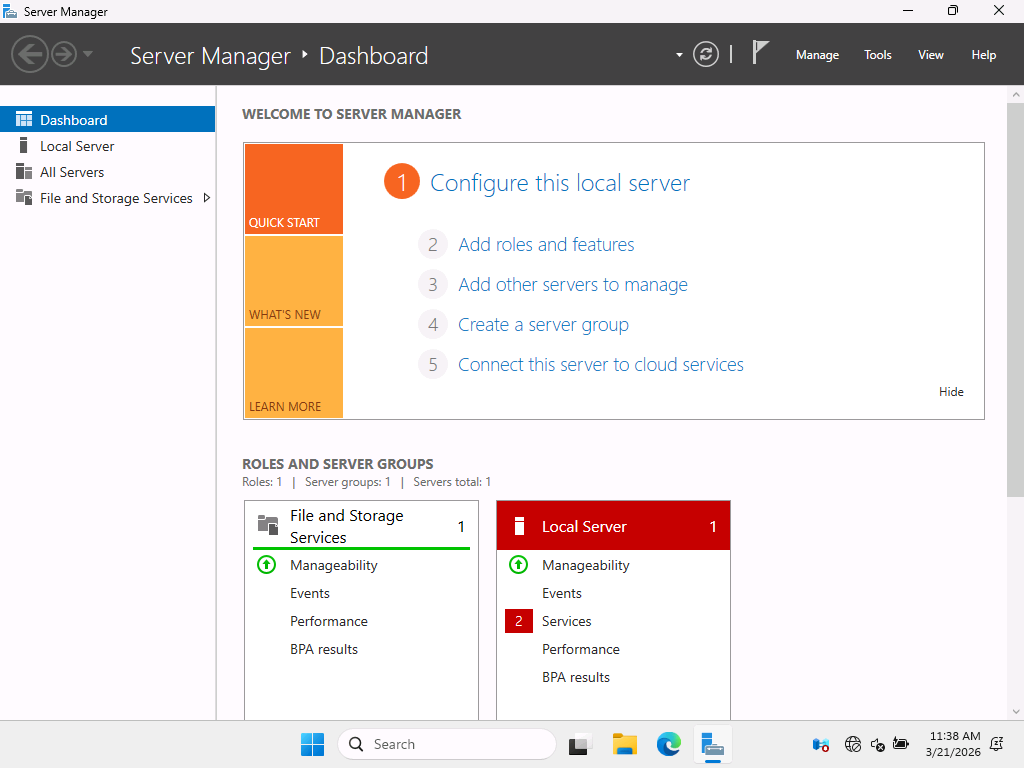
Krok 4.5: Instalacja systemu na maszynie CLIENT
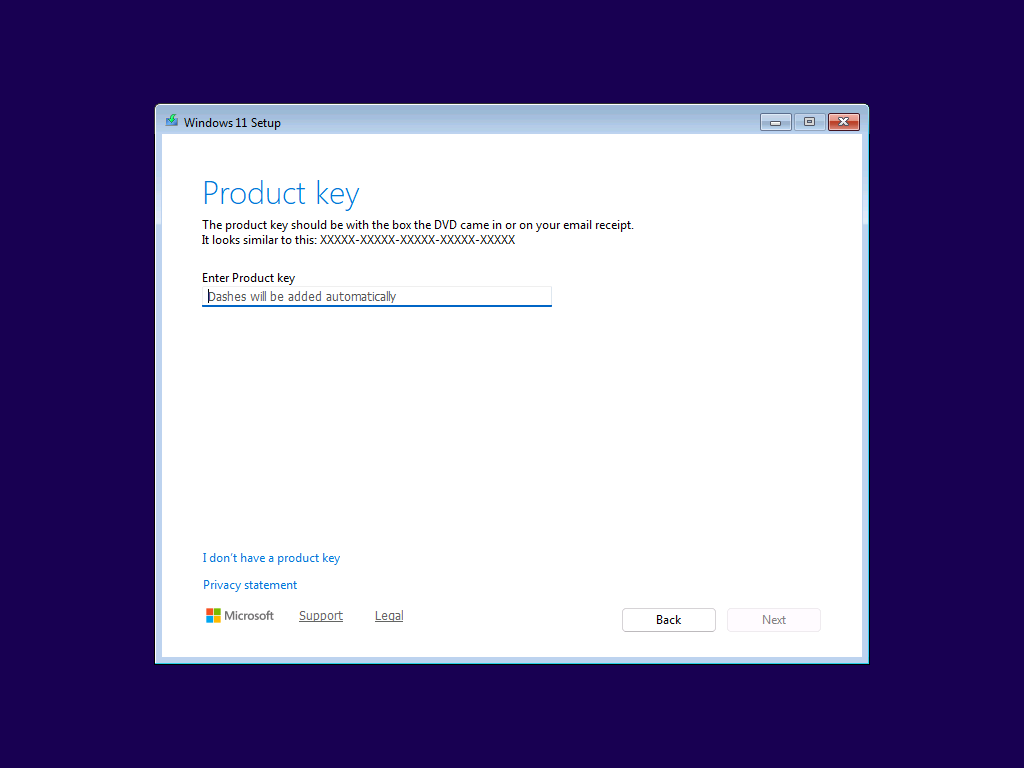
Powtórz proces instalacji systemu dla CLIENT (Windows 10/11). Całośc wyglada bardzo podobnie, choć możesz napotkać kilka różnic. Pierwszą będzie zapytanie o klucz produktu, oczywiście jako, że jest to tylko i wyłącznie lab nie będziemy aktywować systemu i wystarczy, że wybierzesz I dont’t have a product key.
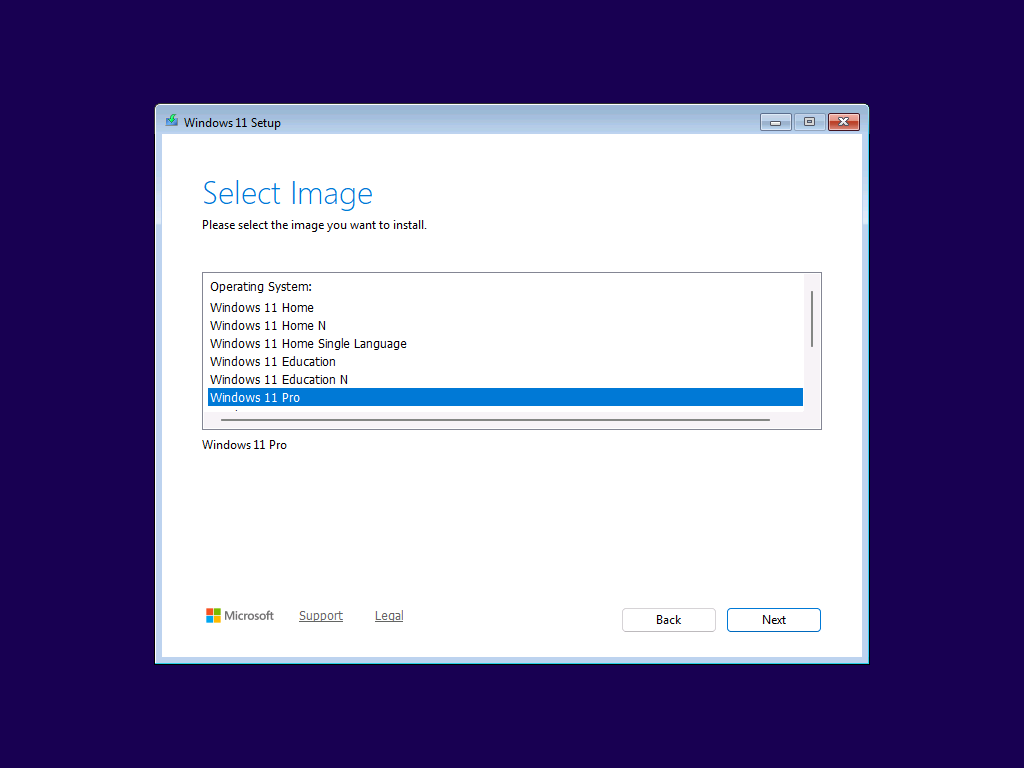
Następnie wybierz wersję systemu. Może to być Windows 11 Pro.
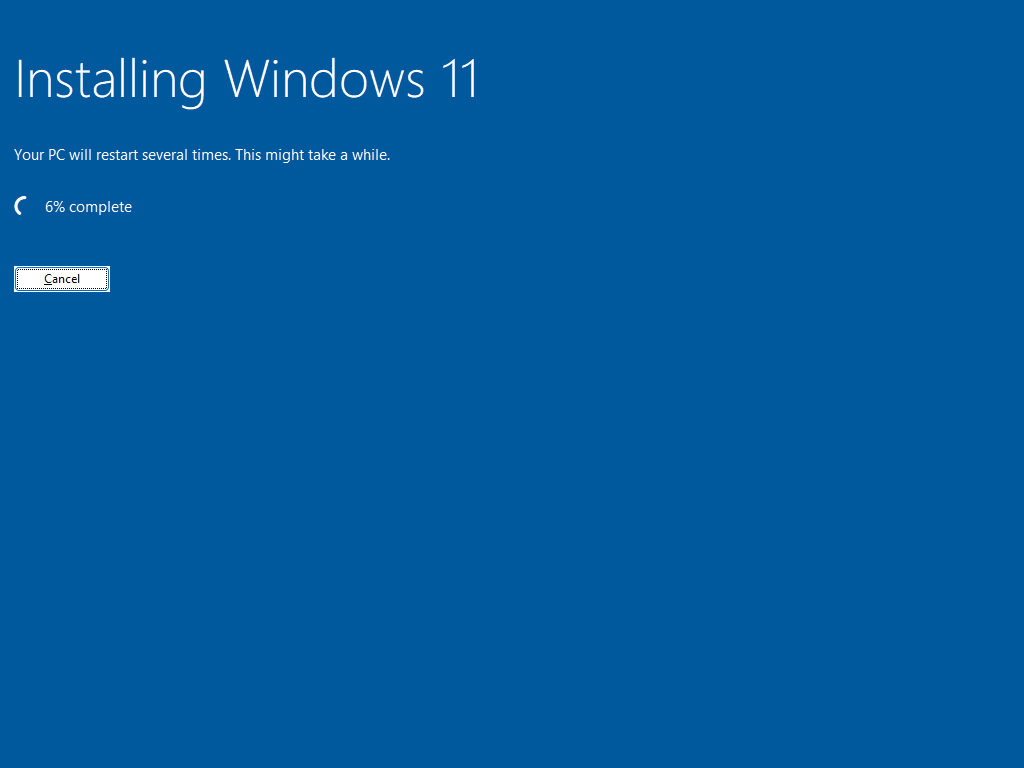
Zapoznaj się oraz zaakceptuj licencję, wybierz dysk do instalacji systemu i jeżeli wszystko jest OK to zacznij instalację:
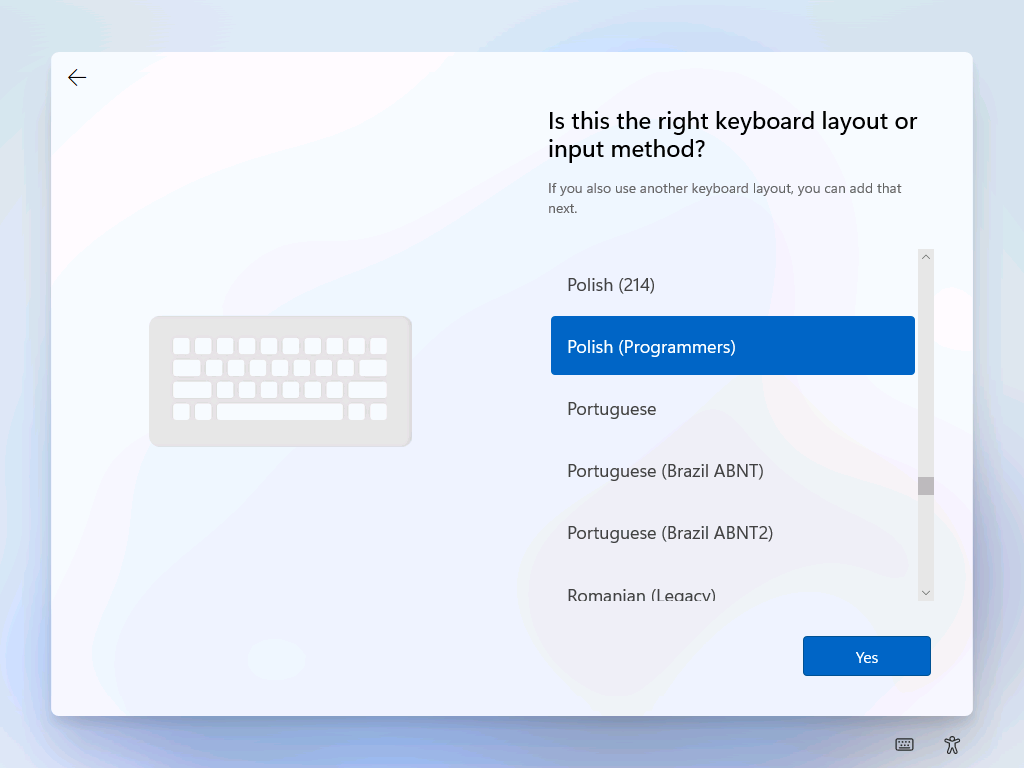
Po udanej instalacji czeka nas mała konfiguracja systemu. Wybór regionu oraz ustawień klawiatury:
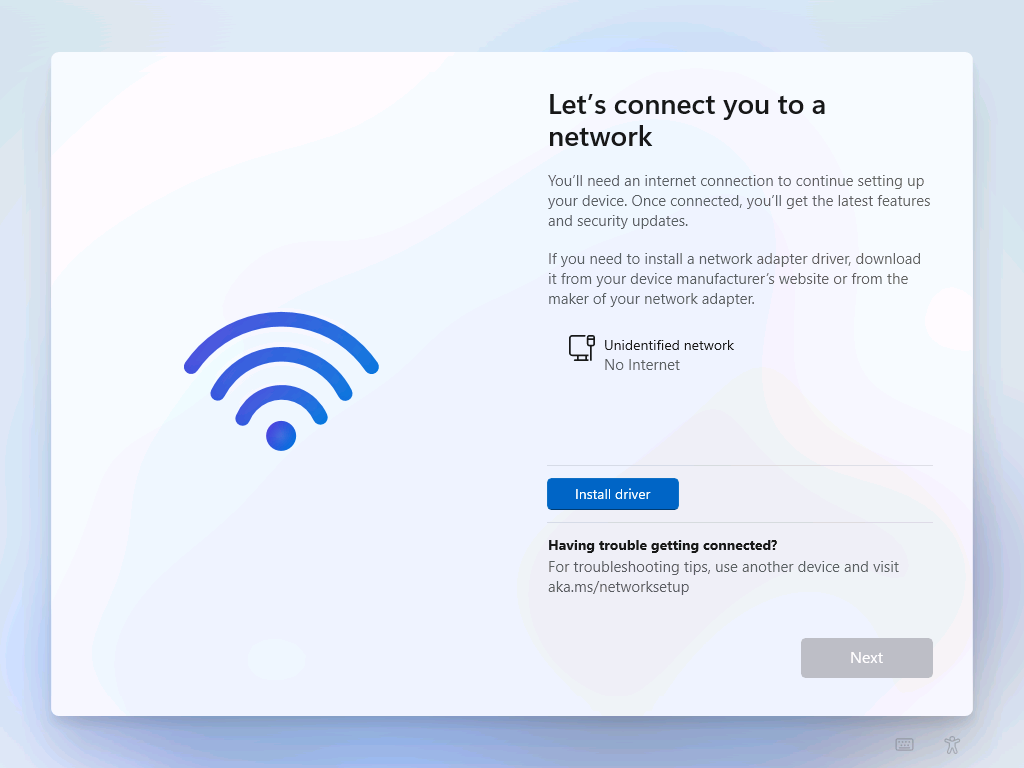
Kolejną przeszkodą jaką napotkasz będzie połączenie z Internetem. W wirtualnej maszynie nie masz aktualnie podłączenia i nie uda się tego przeskoczyć.
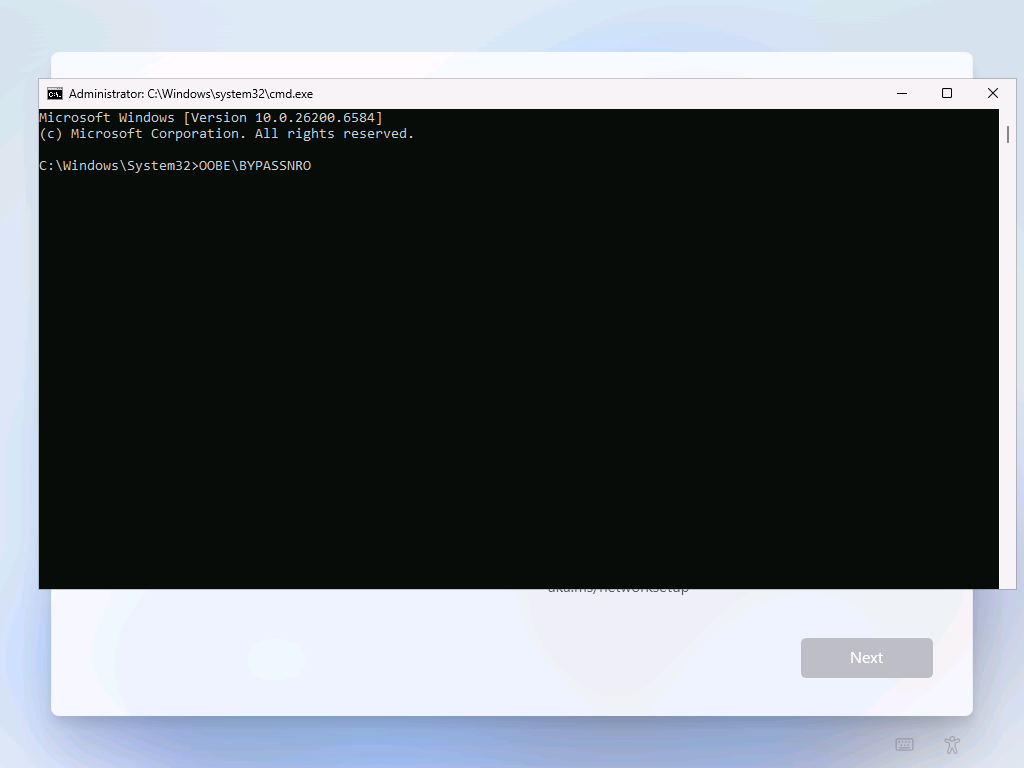
Aby to obejść należy zastosować mały trik: wciśnij SHIFT + F10, a następnie wpisz OOBE\BYPASSNRO
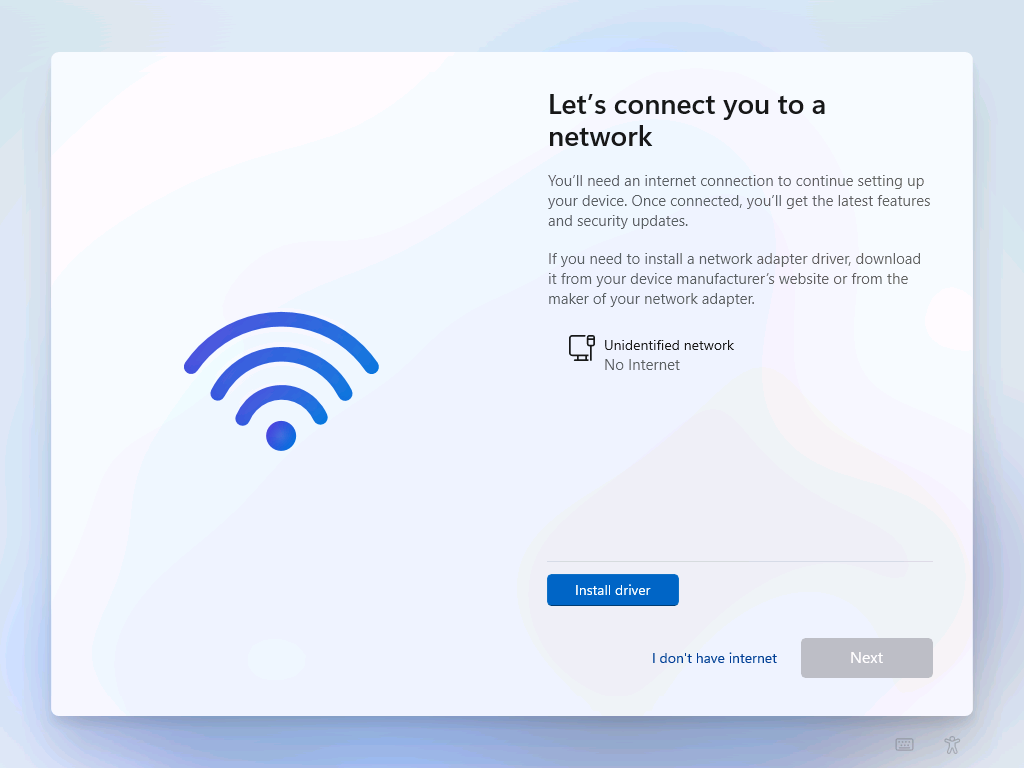
Nastąpie reset i cała konfiguracja od początku, ale tym razem spokojnie będzie można pominąć część odnośnie połączenia do sieci.Teraz wystarczy tylko wybrać I don’t have internet.
Następnie wybierz swój login (Name) i hasło (Password), na kolejnym ekranie musisz dodać 3 pytania bezpieczeństwa. Na kolejnych kilku ekranach będą ustawienia dotyczące różnych konfiguracji jak przykładowo dane diagnostyczne czy te odnośnie usprawnień pisania. Jeżeli wszystko przebiegło pomyślnie, nie pozostaje nic innego jak chwilę poczekać:
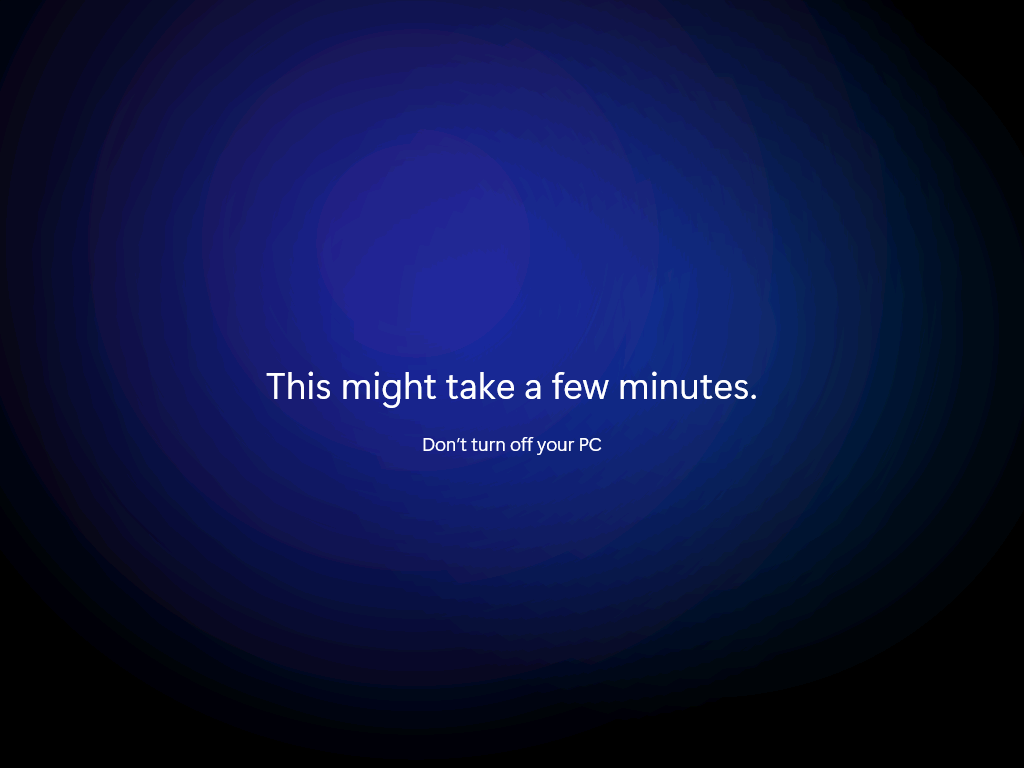
Po kilku minutach naszym oczom ukaże się gotowy do pracy system Windows 11:
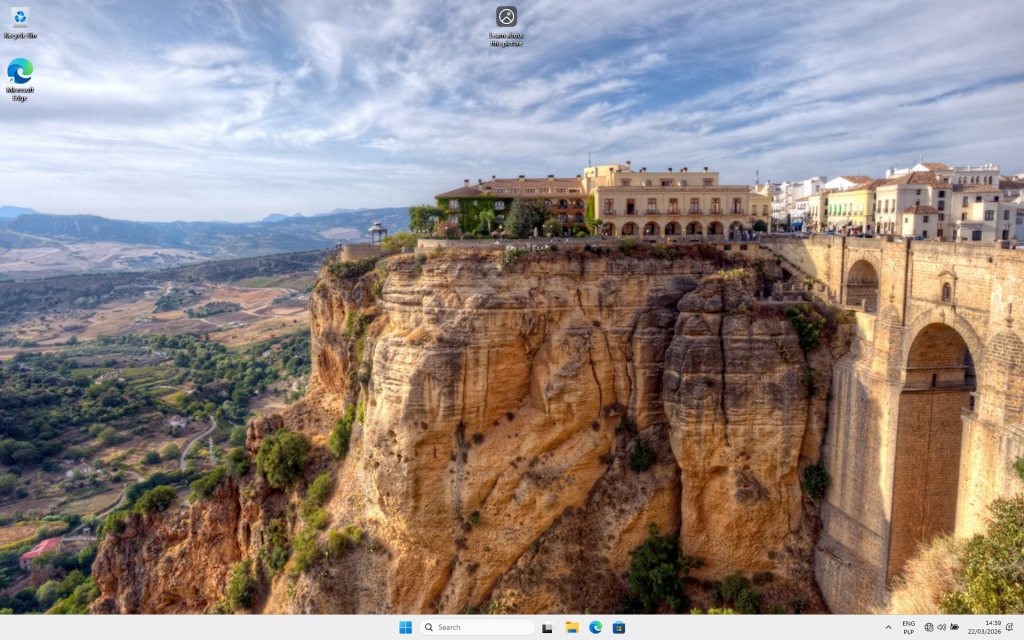
Ważne: Na tym etapie nie konfiguruj jeszcze sieci wewnątrz VM. Zrobimy to w następnej fazie.
Faza V: Konfiguracja sieci wewnątrz VM
Maszyny gotowe do pracy. Aby jednak widziały się nawzajem, należy odpowiednio je zaadresować. A mówiąc nieco dokładniej powinny posiadać statyczne adresy IP w sieci 192.168.100.0/24.
Krok 5.1: Konfiguracja sieci DC
Zaloguj się na DC i uruchom konsolę PowerShella jako Administrator.
PS C:\Users\Administrator> Get-NetAdapter

Name                      InterfaceDescription                    ifIndex Status       MacAddress             LinkSpeed
----                      --------------------                    ------- ------       ----------             ---------
Ethernet                  Microsoft Hyper-V Network Adapter             4 Up           00-15-5D-C4-CB-1C        10 GbpsNey

PS C:\Users\Administrator> New-NetIPAddress -ifIndex 4 -IPAddress 192.168.100.10 -PrefixLength 24 -DefaultGateway 192.168.100.1


IPAddress         : 192.168.100.10
InterfaceIndex    : 4
InterfaceAlias    : Ethernet
AddressFamily     : IPv4
Type              : Unicast
PrefixLength      : 24
PrefixOrigin      : Manual
SuffixOrigin      : Manual
AddressState      : Tentative
ValidLifetime     :
PreferredLifetime :
SkipAsSource      : False
PolicyStore       : ActiveStore

PS C:\Users\Administrator> Set-DnsClientServerAddress -InterfaceIndex 4 -ServerAddresses 127.0.0.1
Po wykonaniu powyższych poleceń powinno to wyglądać mniej więcej tak:
PS C:\Users\Administrator> ipconfig /all

Windows IP Configuration

   Host Name . . . . . . . . . . . . : WIN-4LE5G635KC2
   Primary Dns Suffix  . . . . . . . :
   Node Type . . . . . . . . . . . . : Hybrid
   IP Routing Enabled. . . . . . . . : No
   WINS Proxy Enabled. . . . . . . . : No

Ethernet adapter Ethernet:

   Connection-specific DNS Suffix  . :
   Description . . . . . . . . . . . : Microsoft Hyper-V Network Adapter
   Physical Address. . . . . . . . . : 00-15-5D-C4-CB-1C
   DHCP Enabled. . . . . . . . . . . : No
   Autoconfiguration Enabled . . . . : Yes
   Link-local IPv6 Address . . . . . : fe80::cbb:123c:240:3a59%4(Preferred)
   IPv4 Address. . . . . . . . . . . : 192.168.100.10(Preferred)
   Subnet Mask . . . . . . . . . . . : 255.255.255.0
   Default Gateway . . . . . . . . . : 192.168.100.1
   DHCPv6 IAID . . . . . . . . . . . : 83891549
   DHCPv6 Client DUID. . . . . . . . : 00-01-00-01-31-51-05-9D-00-15-5D-C4-CB-1C
   DNS Servers . . . . . . . . . . . : 127.0.0.1
   NetBIOS over Tcpip. . . . . . . . : Enabled
Krok 5.2: Konfiguracja sieci dla CLIENT
Zaloguj się na CLIENT i uruchom PowerShella jako Administrator.
PS C:\Windows\system32> Get-NetAdapter

Name                      InterfaceDescription                    ifIndex Status       MacAddress             LinkSpeed
----                      --------------------                    ------- ------       ----------             ---------
Ethernet                  Microsoft Hyper-V Network Adapter            10 Up           00-15-5D-C4-CB-1E        10 Gbps

PS C:\Windows\system32> New-NetIPAddress -ifIndex 10 -IPAddress 192.168.100.20 -PrefixLength 24


IPAddress         : 192.168.100.20
InterfaceIndex    : 10
InterfaceAlias    : Ethernet
AddressFamily     : IPv4
Type              : Unicast
PrefixLength      : 24
PrefixOrigin      : Manual
SuffixOrigin      : Manual
AddressState      : Tentative
ValidLifetime     :
PreferredLifetime :
SkipAsSource      : False
PolicyStore       : ActiveStore

# Wskazujemy na DC jako serwer DNS (Kluczowe dla AD!)
PS C:\Windows\system32> Set-DnsClientServerAddress -InterfaceIndex 10 -ServerAddresses 192.168.100.10
Ok, zobaczmy teraz jak wygląda całość:
PS C:\Windows\system32> ipconfig /all

Windows IP Configuration

   Host Name . . . . . . . . . . . . : DESKTOP-3FKIGH6
   Primary Dns Suffix  . . . . . . . :
   Node Type . . . . . . . . . . . . : Hybrid
   IP Routing Enabled. . . . . . . . : No
   WINS Proxy Enabled. . . . . . . . : No

Ethernet adapter Ethernet:

   Connection-specific DNS Suffix  . :
   Description . . . . . . . . . . . : Microsoft Hyper-V Network Adapter
   Physical Address. . . . . . . . . : 00-15-5D-C4-CB-1E
   DHCP Enabled. . . . . . . . . . . : No
   Autoconfiguration Enabled . . . . : Yes
   Link-local IPv6 Address . . . . . : fe80::2853:dcc5:3e7b:de66%10(Preferred)
   IPv4 Address. . . . . . . . . . . : 192.168.100.20(Preferred)
   Subnet Mask . . . . . . . . . . . : 255.255.255.0
   Default Gateway . . . . . . . . . : 192.168.100.1
   DHCPv6 IAID . . . . . . . . . . . : 83891549
   DHCPv6 Client DUID. . . . . . . . : 00-01-00-01-31-51-B2-CE-00-15-5D-C4-CB-1E
   DNS Servers . . . . . . . . . . . : 192.168.100.10
   NetBIOS over Tcpip. . . . . . . . : Enabled
Kolejny test to sprawdzenie łączności. Można to zrobić na kilka sposobów. Jednym z nich jest klasyczny ping.exe lub powershellowy Test-Connection:
PS C:\Windows\system32> ping 192.168.100.10

Pinging 192.168.100.10 with 32 bytes of data:
Reply from 192.168.100.10: bytes=32 time<1ms TTL=128
Reply from 192.168.100.10: bytes=32 time<1ms TTL=128
Reply from 192.168.100.10: bytes=32 time<1ms TTL=128
Reply from 192.168.100.10: bytes=32 time=1ms TTL=128

Ping statistics for 192.168.100.10:
    Packets: Sent = 4, Received = 4, Lost = 0 (0% loss),
Approximate round trip times in milli-seconds:
    Minimum = 0ms, Maximum = 1ms, Average = 0ms

PS C:\Windows\system32> Test-Connection -ComputerName 192.168.100.10 -Count 4

Source        Destination     IPV4Address      IPV6Address                              Bytes    Time(ms)
------        -----------     -----------      -----------                              -----    --------
DESKTOP-3F... 192.168.100.10                                                            32       11
DESKTOP-3F... 192.168.100.10                                                            32       0
DESKTOP-3F... 192.168.100.10                                                            32       2
DESKTOP-3F... 192.168.100.10                                                            32       1
Jeżeli połączenie nie działa, w pierwszej kolejności zweryfikuj ustawienia sieci oraz konfigurację Zapory systemu Windows. Domyślnie system Windows 11 blokuje przychodzące zapytania ICMP Echo (czyli ping).
Kluczowa uwaga: Klient MUSI mieć ustawiony DNS na adres IP Kontrolera Domeny. Bez tego nie znajdzie domeny.
Faza VI: Zmiana nazwy serwera i stacji roboczej
Ok, w tym miejscu mamy już prawie wszystko gotowe do utworzenia domeny. Pozostaje jeszcze zmiana nazwy serwera oraz stacji roboczej, którą lepiej wykonać przed wypromowaniem kontrolera domeny i dołączeniem do domeny. Po zmianie nazwy konieczny restart maszyny.
# Zmiana nazwy serwera
Rename-Computer -NewName DC -Restart

# Sprawdzenie nowej nazwy
PS C:\Users\Administrator> $env:Computername
DC
Identycznie dla drugiej maszyny.
Faza VII: Promocja Kontrolera Domeny (AD DS)
Teraz zamienimy Windows Server w Kontroler Domeny.
Krok 7.1: Instalacja roli i promocja (DC)
Wewnątrz DC, w PowerShellu (Administrator):
# 1. Instalacja roli AD DS oraz narzędzi zarządzania
PS C:\Users\Administrator> Install-WindowsFeature -Name AD-Domain-Services -IncludeManagementTools

Success Restart Needed Exit Code      Feature Result
------- -------------- ---------      --------------
True    No             Success        {Active Directory Domain Services, Group P...

# 2. Promocja serwera do Kontrolera Domeny (Nowy Las)
# Hasło trybu DSRM musi spełniać politykę złożoności (ważne!)
$SafeModePassword = Read-Host -AsSecureString

Install-ADDSForest `
    -InstallDns `
    -DomainName "lab.local" `
    -DomainNetbiosName "LAB" `
    -ForestMode "WinThreshold" `
    -DomainMode "WinThreshold" `
    -DatabasePath "C:\Windows\NTDS" `
    -SysvolPath "C:\Windows\SYSVOL" `
    -LogPath "C:\Windows\NTDS" `
    -SafeModeAdministratorPassword $SafeModePassword `
    -Force:$true

# Po tej komendzie serwer zrestartuje się automatycznie.
Wyjaśnienie parametrów:
-InstallDns: instalacja roli DNS (kluczowej dla AD)-DomainName "lab.local": nazwa Twojej nowej domeny (FQDN)-DomainNetbiosName "LAB": starsza nazwa używana np. przy logowaniu (LAB\Użytkownik)-ForestMode/DomainMode: poziom funkcjonowania domeny lasu, „WinThreshold” odpowiada Windows Server 2016/2019/2022-DatabasePath/SysvolPath/LogPath: ścieżki do plików bazy danych AD-SafeModeAdministratorPassword: hasło do trybu naprawczego (DSRM) warto zapamiętać
Po restarcie zaloguj się jako LAB\Administrator i Twoja domena gotowa.
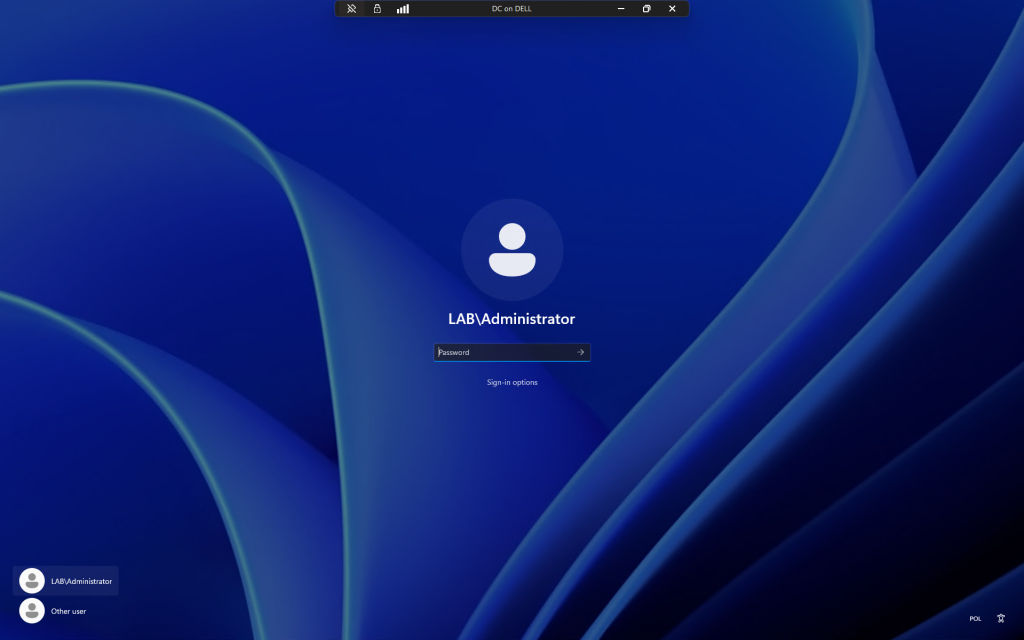
Krok 7.2: Dołączanie komputera (CLIENT)
Gdy DC jest już gotowy i działa, musimy dołączyć do niego maszynę CLIENT. W tym celu na maszynie uruchom PowerShella z podniesionymi uprawnieniami (Administrator) i wpisz:
# 2. Dołączenie do domeny
# Wymaga podania poświadczeń administratora domeny
$DomainCred = Get-Credential -Message "Podaj dane Administratora domeny (LAB\Administrator)"

Add-Computer -DomainName "lab.local" -Credential $DomainCred -Restart

# Maszyna zrestartuje się automatycznie po pomyślnym dołączeniu.
Po restarcie na ekranie logowania wybierz Inne konto i zaloguj się jako LAB\Administrator lub utwórz nowego użytkownika w AD.
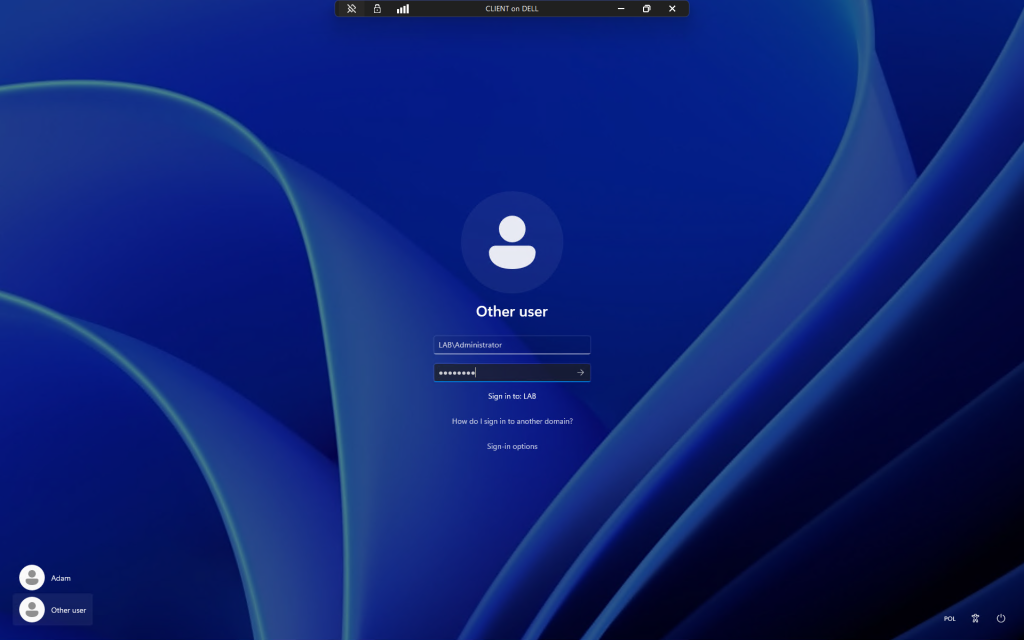
Krok 7.3: Tworzenie użytkownika testowego (DC)
Aby nie logować się kontem Administratora, utwórzmy nowego użytkownika. W tym celu wróć na DC i w konsoli PowerShell wpisz:
# Tworzenie nowego użytkownika w AD
$Password = Read-Host -AsSecureString
New-ADUser -Name "Jan Kowalski" -GivenName "Jan" -Surname "Kowalski" -SamAccountName "jkowalski" -UserPrincipalName "jkowalski@lab.local" -AccountPassword $Password -Enabled $true -ChangePasswordAtLogon $false

# Dodanie użytkownika do grupy Domain Admins i Remote Desktop Users
"Domain Admins", "Remote Desktop Users" | Add-ADGroupMember -Members jkowalski
Faza VIII: Migawki (Checkpoints)
Jedną z największych zalet środowiska labowego jest możliwość cofnięcia zmian o ile oczywiście wcześniej zapewnimy sobie taką możliwość. Zatem, zanim zaczniesz eksperymentować warto jest zrobić migawkę (w nomenklaturze Hyper-V będzie to checkpoint).
Krok 8.1: Tworzenie migawek
Musisz wiedzieć, że migawki tworzymy na hoście wirtualizacji. Możesz to zrobić manualnie klikając prawym na każdą maszynę i wybierając Checkpoint lub podejść do sprawy od strony PowerShella:
# Tworzenie czystej migawki po konfiguracji
$VMNames = @("DC", "CLIENT")
$CheckpointName = "Clean_Install_Domain_Joined"

foreach ($VM in $VMNames) {
    Write-Host "Tworzenie migawki dla $VM..." -ForegroundColor Cyan
    Checkpoint-VM -Name $VM -SnapshotName $CheckpointName
}


# W celu sprawdzenia
PS C:\WINDOWS\system32> Get-VMSnapshot -VMName DC, CLIENT

VMName Name                                                    SnapshotType CreationTime        ParentSnapshotName
------ ----                                                    ------------ ------------        ------------------
DC     Automatic Checkpoint - DC - (21/03/2026 - 18:42:34)     Standard     21/03/2026 18:42:35
CLIENT Automatic Checkpoint - CLIENT - (22/03/2026 - 14:01:07) Standard     22/03/2026 14:01:08
DC     Clean_Install_Domain_Joined                             Standard     28/03/2026 11:42:43 Automatic Checkpoint - DC - (21/03/2026 - 18:42:34)
CLIENT Clean_Install_Domain_Joined                             Standard     28/03/2026 11:42:43 Automatic Checkpoint - CLIENT - (22/03/2026 - 14:01:07)
Teraz, jeśli zepsujesz konfigurację, w Menedżerze Hyper-V kliknij prawym na VM -> Inspektor migawek -> Zastosuj (Apply).
Faza IX: Weryfikacja i rozwiązywanie problemów
Jak sprawdzić czy wszystko działa?
- Na CLIENT:
- Otwórz
powershelli wpisz:whoami. Powinno zwrócićlab\jkowalski(lub inny użytkownik). - Wpisz:
nslookup lab.local. Powinno zwrócić adres IP kontrolera domeny (192.168.100.10). - Spróbuj zalogować się na użytkownika
jkowalski.
- Otwórz
- Na DC:
- Otwórz Active Directory Users and Computers (
dsa.msc). - Sprawdź czy w kontenerze
Computerswidoczny jestCLIENT.
- Otwórz Active Directory Users and Computers (
Częste problemy (Troubleshooting)
- Błąd: „Nie można skontaktować się z kontrolerem domeny”
- Możliwa przyczyna: Złe ustawienie DNS na kliencie.
- Rozwiązanie: Upewnij się, że CLIENT ma DNS ustawiony na IP DC, a nie na 8.8.8.8 czy router domowy.
- Brak Internetu w VM
- Możliwa przyczyna: Błędna konfiguracja NAT na hoście.
- Rozwiązanie: Sprawdź na hoście czy usługa
SharedAccessdziała. Sprawdź czy brama w VM (192.168.100.1) odpowiada IP adapteravEthernet (LabNet)na hoście.
- Błąd czasu (Kerberos)
- Możliwa przyczyna: Różnica czasu między Hostem a VM większa niż 5 minut.
- Rozwiązanie: W VM wpisz
w32tm /resync. Kerberos wymaga synchronizacji czasu.
Podsumowanie i dalsze kroki
Gratulacje! Właśnie zbudowałaś/eś w pełni funkcjonalne środowisko Active Directory, które może stać się Twoim poligonem doświadczalnym. Eksperymentuj, psuj, naprawiaj, trenuj rozwijaj swoje umiejętności. Jeżeli się znudzisz to poniżej kilka możliwości rozbudowy:
- Group Policy (GPO): Spróbuj wymusić tapetę na pulpicie klienta lub zablokuj Panel Sterowania.
- DNS/DHCP: Zainstaluj rolę DHCP na DC i skonfiguruj zakres adresów, aby klient pobierał IP automatycznie.
- WSUS: Skonfiguruj serwer aktualizacji, aby sterować łatkami w domenie.
- Bezpieczeństwo: Zainstaluj narzędzia takie jak BloodHound (na kliencie) i przeanalizuj strukturę AD pod kątem luk.
- PowerShell AD: Naucz się zarządzać użytkownikami masowo skryptami (
Import-CSV+New-ADUser).
Pamiętaj, aby regularnie robić migawki (Checkpoints) przed większymi zmianami. Powodzenia w nauce!
Czy jest inna droga?
Oczywiście zaprezentowany materiał to nie jedyna droga do budowy własnego środowiska. Kierunków jest co najmniej kilka, a jednym, na który warto zwrócić uwagę jest moduł AutomatedLab. To narzędzie oparte na PowerShellu pozwala w pełni zautomatyzować proces tworzenia i konfiguracji środowisk labowych – od pojedynczych maszyn, po złożone scenariusze z domeną Active Directory, serwerami aplikacyjnymi czy rolami infrastrukturalnymi. Dzięki podejściu „Infrastructure as Code” definiujesz całe środowisko w postaci skryptu, który możesz wielokrotnie uruchamiać, modyfikować i wersjonować. AutomatedLab upraszcza m.in. tworzenie maszyn wirtualnych, konfigurację sieci, instalację ról systemowych oraz przygotowanie gotowych scenariuszy szkoleniowych. To szczególnie przydatne w kontekście nauki, testów oraz budowy powtarzalnych środowisk demonstracyjnych. Jeżeli chcesz poznać ten moduł bliżej daj znać w komentarzu a przygotuję odpowiedni wpis.
Kolejnym przydatnym narzędziem może być mój projekt:
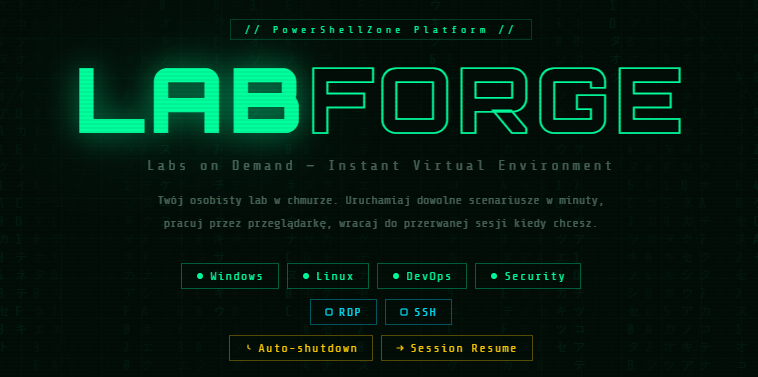
Więcej szczegółów już w krótce.
To wszystko na dziś!
Jeśli masz ciekawe spostrzeżenia lub doświadczenia w tym temacie – koniecznie podziel się nimi w komentarzach.
A jeśli moje materiały są dla Ciebie pomocne, możesz postawić mi wirtualną kawę.
Dzięki za wsparcie!


Adam Pietrzak
Administrator | Trener i autor szkoleń | Entuzjasta PowerShellaAdministrator systemów i sieci wsparcia działań wojskowych z ponad 10-letnim doświadczeniem. Praktyk w dziedzinie zarządzania Active Directory, bezpieczeństwa systemu Windows oraz automatyzacji zadań (PowerShell). Trener i twórca materiałów edukacyjnych (szkolenia, warsztaty, artykuły, podręczniki). Pasjonat dzielenia się wiedzą i wspierania początkujących administratorów IT. Prywatnie – amator aktywnego wypoczynku i rodzinnych podróży.